20 KiB
- Bloxie's Emacs Configuration
- Introduction
- Config
Bloxie's Emacs Configuration
By Curt Spark / Bloxiebird.
Introduction
Welcome to my Emacs configuration!
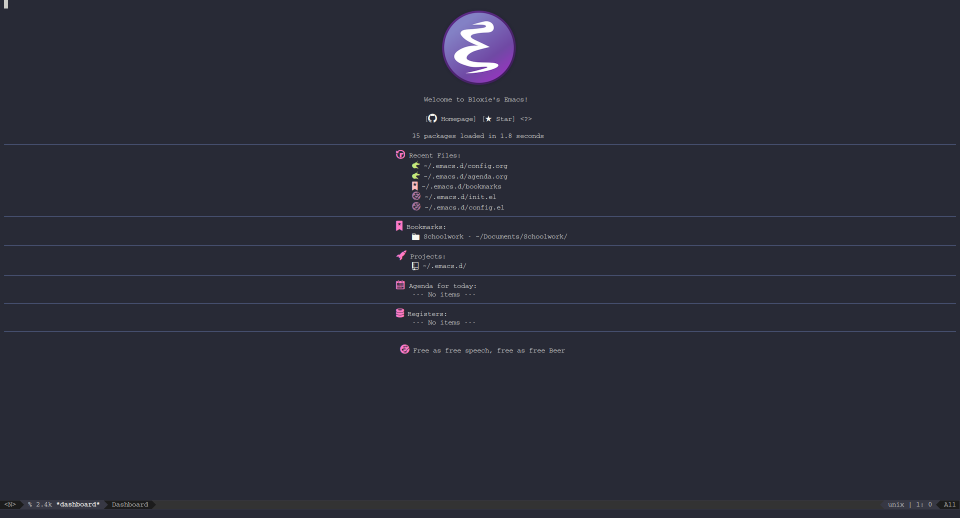
This configuration is inspired by :
`https://github.com/munen/emacs.d`
And also loosely inspired by :
`https://github.com/daedreth/UncleDavesEmacs/blob/master/config.org`
With help from his fantastic Emacs tutorial series :
`https://www.youtube.com/playlist?list=PLX2044Ew-UVVv31a0-Qn3dA6Sd_-NyA1n`
This configuration is much more barebones and suited for someone just doing some writing or editing, which is exactly my use case. It does however copy over the useful functionalities (In my personal preference) As this is a simple literate configuration, not a large actively maintained distribution like Spacemacs or Doom Emacs, feel free to do whatever you want with the configuration. I've tried to document what every package does, what the code does briefly for beginners to Emacs or literate configurations.
Config
Appearance
Remove Tool Bar
Remove the Tool bar at the top for more room. Set mode to false:
(tool-bar-mode -1)Remove Menu Bar
Remove the Menu Bar at the top for more room. Set mode to false:
(menu-bar-mode -1)Remove Scroll Bar
Remove the Scroll Bar at the side for more room. Set mode to false:
(scroll-bar-mode -1)Display Line Numbers
Display line numbers for all Programming Modes. Add hook to enable display-line-numbers-mode on all programming major modes:
(add-hook 'prog-mode-hook 'display-line-numbers-mode)Modern Fringes
Modern Fringes is a package that makes the side fringes of Emacs much more cleaner and modern. Install the package, enable it and ensure that it always is installed:
  (use-package modern-fringes
    :ensure t
    :init
    (modern-fringes-invert-arrows))
Theming
The theme for Emacs. Install and set the theme, ensuring that it is always installed: Old theme for if you'd like to follow Xresources +BEGIN_SRC emacs-lisp (use-package xresources-theme :ensure t :init (load-theme 'xresources t)) +END_SRC
  (use-package doom-themes
    :ensure t
    :config
    ;; Global settings (defaults)
    (setq doom-themes-enable-bold t    ; if nil, bold is universally disabled
          doom-themes-enable-italic t) ; if nil, italics is universally disabled

    (load-theme 'doom-gruvbox t)

    ;; Enable flashing mode-line on errors
    (doom-themes-visual-bell-config)

    ;; Enable custom neotree theme (all-the-icons must be installed!)
    (doom-themes-neotree-config)
    ;; or for treemacs users
    (setq doom-themes-treemacs-theme "doom-colors") ; use the colorful treemacs theme
    (doom-themes-treemacs-config)

    ;; Corrects (and improves) org-mode's native fontification.
    (doom-themes-org-config))
All The Icons
All The Icons is a package to display cool icons within Emacs. Install the package, enable it and ensure that it always is installed:
  (use-package all-the-icons
    :ensure t)
All The Icons Support for Ivy/Counsel. Which are autocompletion tools in emacs Install the package, enable it and ensure that it always is installed:
  (use-package all-the-icons-ivy
    :ensure t
    :init
    (all-the-icons-ivy-setup))
Emacs Dashboard
A startup dashboard for Emacs, replacing the boring old one. Install the package, enable it and ensure that it always is installed:
  (use-package dashboard
    :ensure t
    :config
    (dashboard-setup-startup-hook))

  (setq initial-buffer-choice (lambda () (get-buffer "*dashboard*")))
Emacs Dashboard Configuration
  ;; Set the title
  (setq dashboard-banner-logo-title "Welcome to Bloxie's Emacs!")
  ;; Set the banner
  (setq dashboard-startup-banner 'logo)
  ;; Value can be
  ;; 'official which displays the official emacs logo
  ;; 'logo which displays an alternative emacs logo
  ;; 1, 2 or 3 which displays one of the text banners
  ;; "path/to/your/image.png" which displays whatever image you would prefer

  ;; Content is not centered by default. To center, set
  (setq dashboard-center-content t)

  ;; To disable shortcut "jump" indicators for each section, set
  (setq dashboard-show-shortcuts nil)

  ;;To customize which widgets are displayed, you can use the following snippet

  (setq dashboard-items '((recents  . 5)
                          (bookmarks . 5)
                          (projects . 5)
                          (agenda . 5)
                          (registers . 5)))

  ;; To show agenda for the upcoming seven days set the variable show-week-agenda-p to t.

  ;; (setq show-week-agenda-p t)

  ;; Note that setting list-size for the agenda list is intentionally ignored; all agenda items for the current day will be displayed.


  ;; To customize which categories from the agenda items should be visible in the dashboard set the dashboard-org-agenda-categories to the list of categories you need.

  ;; (setq dashboard-org-agenda-categories '("Tasks" "Appointments"))

  ;; To add icons to the widget headings and their items:
  (setq dashboard-set-heading-icons t)
  (setq dashboard-set-file-icons t)

  ;; To show navigator below the banner:
  (setq dashboard-set-navigator t)

  ;; To customize the buttons of the navigator like this:
  ;; Format: "(icon title help action face prefix suffix)"
  (setq dashboard-navigator-buttons
        `(;; line1
          ((,(all-the-icons-octicon "mark-github" :height 1.1 :v-adjust 0.0)
           "Homepage"
           "Browse homepage"
           (lambda (&rest _) (browse-url "https://gitlab.com/bloxiebird/linux-emacs-configuration")))
          ("★" "Star" "Show stars" (lambda (&rest _) (show-stars)) warning)
          ("?" "" "?/h" #'show-help nil "<" ">"))
          ))
Custom
Auto Popup frame Mode
A mode that is similiar in functionality to pop-up-frame, however much more granular in control and toggleable as it is mode. Will stop duplicate windows from creating new frames etc.
Using simpler solution instead:
(setq pop-up-frames t)+BEGIN_SRC emacs-lisp (defun which-active-modes () "Which minor modes are enabled in the current buffer." (let ((active-modes)) (mapc (lambda (mode) (condition-case nil (if (and (symbolp mode) (symbol-value mode)) (add-to-list 'active-modes mode)) (error nil) )) minor-mode-list) active-modes))
(defun pop-up-frames-switch-to-buffer (buffer alist) "Auto Pop up frames switch to buffer command." (member 'pop-up-frames-mode (which-active-modes)))
(setq display-buffer-alist (append display-buffer-alist '((pop-up-frames-switch-to-buffer . ((display-buffer-reuse-window display-buffer-pop-up-frame) . ((reusable-frames . 0))) ))))
(define-minor-mode pop-up-frames-mode "Pop up frames minor mode" :lighter " PUF")
(provide 'pop-up-frames-mode) +END_SRC
Resizing Buffers
These are controls to resize the width and height of windows. Set keys:
  (global-set-key (kbd "<C-up>") 'shrink-window)
  (global-set-key (kbd "<C-down>") 'enlarge-window)
  (global-set-key (kbd "<C-left>") 'shrink-window-horizontally)
  (global-set-key (kbd "<C-right>") 'enlarge-window-horizontally)
Split and Follow Buffer
When splitting a window vertically or horizontally, make sure the mouse and focus follows that new window.
  (defun split-and-follow-horizontally ()
    (interactive)
    (split-window-below)
    (balance-windows)
    (other-window 1))
  (global-set-key (kbd "C-x 2") 'split-and-follow-horizontally)

  (defun split-and-follow-vertically ()
    (interactive)
    (split-window-right)
    (balance-windows)
    (other-window 1))
  (global-set-key (kbd "C-x 3") 'split-and-follow-vertically)
Autosave
Default Emacs will store backup and "temporary" files in the edited files directory, instead this changes it to move it to the UNIX Temporary Directory. Set backup/temporary file directories:
  (setq backup-directory-alist
        `((".*" . ,temporary-file-directory)))
  (setq auto-save-file-name-transforms
        `((".*" ,temporary-file-directory t)))
Wind Move
Windmove is built into Emacs. It lets you move point from window to window using Shift and the arrow keys. This is easier to type than ‘C-x o’ when there are multiple windows open. Enable Wind Move:
  (when (fboundp 'windmove-default-keybindings)
    (windmove-default-keybindings))
Global Revert Mode
Global Revert Mode is a minor mode that automatically refreshes opened buffers when an external tool has changed their data. Enable Global Revert Mode:
(global-auto-revert-mode t)Rainbow Delimiters
This Minor Mode will mark pairs of brackets with colours. Install the package, enable it and ensure that it always is installed.
  (use-package rainbow-delimiters
    :ensure t)
Set Minor Mode as Global :
  (define-globalized-minor-mode global-rainbow-delimiters-mode rainbow-delimiters-mode
    (lambda () (rainbow-delimiters-mode 1)))

  (global-rainbow-delimiters-mode 1)
Rainbow Mode
This Minor Mode will highlight RGB/HEX values with their respective colours. Install the package, enable it and ensure that it always is installed.
  (use-package rainbow-mode
    :ensure t)
Set Minor Mode as Global :
  (define-globalized-minor-mode global-rainbow-mode rainbow-mode
    (lambda () (rainbow-mode 1)))

  (global-rainbow-mode 1)
Pdf Viewer
PDF Tools is, among other things, a replacement of DocView for PDF files. The key difference is that pages are not pre-rendered by e.g. ghostscript and stored in the file-system, but rather created on-demand and stored in memory.
Actually, displaying PDF files is just one part of PDF Tools. Since poppler can provide us with all kinds of information about a document and is also able to modify it, there is a lot more we can do with it.
Install the package, enable it and ensure that it always is installed:
  (use-package pdf-tools
    :ensure t
    :init
    (pdf-loader-install))
Org Mode
Simple Org Mode Preview
These are a simple set of functions that will automatically refresh the other buffer, which presumably has the Org Mode PDF open. Once using the keybindings to quickly export the file, another window will pop up as a live preview (Which is just an automatically opened preview of the exported PDF). Define functions and set keybindings:
  (defun open-pdf ()
    (split-window-right)
    (other-window 1)
    (find-file (concat "/" (substring buffer-file-name 1 (- (length buffer-file-name) 4)) ".pdf"))
    (revert-buffer nil t)
    (other-window -1))

  (defun update-other-buffer ()
    (interactive)
    (other-window 1)
    (revert-buffer nil t)
    (other-window -1))

  (defun check-if-pdf-is-open ()
    (setq openwindows (length (delete-dups (mapcar #'window-buffer (window-list)))))
    (if (>= openwindows 2) (update-other-buffer) (open-pdf)))

  (defun org-compile-beamer-and-update-other-buffer ()
    "Has as a premise that it's run from an org-mode buffer and the
     other buffer already has the PDF open"
    (interactive)
    (org-beamer-export-to-pdf)
    (check-if-pdf-is-open))

  (defun org-compile-latex-and-update-other-buffer ()
    "Has as a premise that it's run from an org-mode buffer and the
     other buffer already has the PDF open"
    (interactive)
    (org-latex-export-to-pdf)
    (check-if-pdf-is-open))

  (define-key org-mode-map (kbd "C-c rl") 'org-compile-latex-and-update-other-buffer)
  (define-key org-mode-map (kbd "C-c rb") 'org-compile-beamer-and-update-other-buffer)
LateX Preview
This package will automatically convert LaTeX Snippets into viewable LaTeX in your Org Mode Documents. LaTeX Snippets can be defined with text between dollar signs. Example : $ax+bx^2$
These LaTeX snippets will also show up when converting to PDF. Install the package, enable it and ensure that it always is installed:
  (use-package org-fragtog
    :ensure t
    :init
    (add-hook 'org-mode-hook 'org-fragtog-mode))
Org Bullets
Org Bullets convert the Asterisks of Org Mode headers into unicode Bullet point with multiple styles. Install the package, enable it and ensure that it always is installed, then add a hook to enable the Bullet Points when on Org Major Mode:
  (use-package org-bullets
    :ensure t
    :config
    (add-hook 'org-mode-hook (lambda () (org-bullets-mode))))
Enable Indent Mode
A hook that will autmatically make sure that indenting of headers are enabled by default, this is visually useful and emulates code hierarchy. Add a hook to enable the Indentation when on Org Major Mode:
(add-hook 'org-mode-hook 'org-indent-mode)Enable Beamer Support
A hook that will automatically make sure that Beamer Org Mode templates and exportion are enabled by default, for slideshow creation with LaTeX. Add a hook to enable the Beamer Mode when on Org Major Mode:
(add-hook 'org-mode-hook 'org-beamer-mode)Agenda
For Org-Agenda, you can set a location of your Org Agenda file here. Set Agenda Directory:
(setq org-agenda-files (quote("~/.emacs.d/agenda.org")))This is will integrate the Calendar/Diary into Org-Agenda, so you can get access to dates on public holidays etc. Set diary to true:
(setq org-agenda-include-diary t)Evil Mode
Evil Mode, a package designed to emulate modal editing and vim keybindings in Emacs. Install the package, enable it and ensure that it always is installed, and then make sure that evil-mode is enabled by default:
  (use-package evil
    :ensure t
    :init
    (evil-mode 1))
Projectile
Projectile is a project manager, like a dynamic bookmarking system. It will automatically add repositories as projects which you can access via Dired or Ivy completion. Install the package, enable it and ensure that it always is installed, and then make sure that projectile-mode is enabled by default:
  (use-package projectile
    :ensure t
    :init
    (projectile-mode))
Auto Completion
Which Key
Which Key is an insanely useful package that will automatically show you the possible key combinations to finish a binded keychord. Install the package, enable it and ensure that it always is installed, and then make sure that which-key is enabled by default:
  (use-package which-key
    :ensure t
    :init
    (which-key-mode))
Ivy
Ivy is an autocompletion framework, it will automatically fuzzy find search words for you. This includes file managing, searching, and more via its extensibility and the Counsel package. Install the package, enable it and ensure that it always is installed, and then make sure that ivy-mode is enabled by default:
  (use-package ivy
    :ensure t
    :init
    (ivy-mode 1)
    :bind
    ("C-s" . swiper))
Ivy Configuration Set an option to make Ivy show previously opened/edited buffers in the buffer selection :
  (setq ivy-use-virtual-buffers t)
  ;(setq enable-recursive-minibuffers t)
Counsel
A collection of Ivy-enhanced versions of common Emacs commands. Install the package, enable it and ensure that it always is installed:
  (use-package counsel
    :ensure t)
Counsel Support in Projectile. Install the package, enable it and ensure that it always is installed, and then set up bindings for the Projectile specific prefix:
  (use-package counsel-projectile
    :ensure t
    :init
    (counsel-projectile-mode))
  (define-key projectile-mode-map (kbd "C-c p") 'projectile-command-map)
Company
Company Base
Company is a text completion framework for Emacs. The name stands for "complete anything". It uses pluggable back-ends and front-ends to retrieve and display completion candidates. Install the package, enable it and ensure that it always is installed, and then make sure that company-mode is enabled by default:
  (use-package company
    :ensure t
    :init
    (global-company-mode))
Configuration
  ; No delay in showing suggestions.
  (setq company-idle-delay 0)

  ; Show suggestions after entering one character.
  (setq company-minimum-prefix-length 1)

  ; Wrap around when suggestions reach bottom.
  (setq company-selection-wrap-around t)

  ; Use tab key to cycle through suggestions.
  ; ('tng' means 'tab and go')
  (company-tng-configure-default)
Company Quickhelp
Company Quickhelp is an extension to company which introduces documentation popups that appears when idling on a company completion candidate. Install the package, enable it and ensure that it always is installed, and then make sure that company-quickhelp-mode is enabled by default:
  (use-package company-quickhelp
    :ensure t
    :init
    (company-quickhelp-mode))
Company Box
Company Box Mode is a mode that gives Company menu options icons.
  (use-package company-box
    :ensure t
    :hook (company-mode . company-box-mode))
Multiple Cursors
The Multiple Cursors package is pretty self explanatory, you can select and manipulate multiple lines of the same text at the same time, move the cursors in unison. Etc. Install the package, enable it and ensure that it always is installed, and then bind the useful functions to a mnenomic key chord:
To remove the cursors on non-evil mode implementation, use keybind C-g. For non-evil mode: +BEGIN_SRC emacs-lisp (use-package multiple-cursors :ensure t :bind ("C-c m" . 'mc/mark-next-like-this) :bind ("C-c C-m" . 'mc/mark-all-like-this)) +END_SRC
To undo the last cursors added on evil mode implementation, type gru in NORMAL mode. To remove the cursors on evil mode implementation, type grq in NORMAL mode. For evil mode:
  (use-package evil-mc
    :ensure t
    :config
    (global-evil-mc-mode 1)
    :bind
    ("C-c m" . 'evil-mc-make-all-cursors)
    :bind
    ("C-c C-m"  . 'evil-mc-make-and-goto-next-match))
Expand Region
Auto selects a region of text/code, if executed multiple times it will wrap further, like layers of a binary onion. Install the package, enable it and ensure that it always is installed, and then bind the useful functions to a mnenomic key chord:
  (use-package expand-region
    :ensure t
    :bind
    ("C-c e" . 'er/expand-region))
LSP Mode
LSP mode will give you IDE capabilities in Emacs, using Microsoft's Universal Language Server Protocol. The same one that VSCode uses for linting, autocompletion. Etc. Install the package, enable it and ensure that it always is installed, add a hook to make sure it only is activated on Programming Related Major Modes, and set a keychord for the custom prefix. Please check `https://github.com/emacs-lsp/lsp-mode#installation` for instructions on how to install the Programming Language Servers that you want.
Lsp Mode
  (use-package lsp-mode
    :ensure t
    :hook (;; replace XXX-mode with concrete major-mode(e. g. python-mode)
           (prog-mode . lsp)
           ;; if you want which-key integration
           (lsp-mode . lsp-enable-which-key-integration))
    :commands lsp)

  ;; set prefix for lsp-command-keymap (few alternatives - "C-l", "C-c l")
  (setq lsp-keymap-prefix "s-l")
Configuration
  ;; optionally
  (use-package lsp-ui :commands lsp-ui-mode
    :ensure t)
  (use-package company-lsp :commands company-lsp
    :ensure t)
  ;; if you are helm user
  ;;(use-package helm-lsp :commands helm-lsp-workspace-symbol)
  ;; if you are ivy user
  (use-package lsp-ivy :commands lsp-ivy-workspace-symbol
    :ensure t)
  ;;(use-package lsp-treemacs :commands lsp-treemacs-errors-list
  ;;  :ensure t)

  ;; optionally if you want to use debugger
  (use-package dap-mode
    :ensure t)
  ;; (use-package dap-LANGUAGE) to load the dap adapter for your language